Help Center
Welcome to DistroPrep
DistroPrep is your final checkpoint before you release music. We handle the technical requirements that distributors need for platforms like Spotify, Apple Music, Pandora, YouTube Music, and TikTok. You avoid rejections, audio issues, and the slow manual work these checks normally require.
We include presets for major distributors such as DistroKid, CD Baby, SoundOn, TuneCore, One RPM, EmuBands, Ditto, LANDR, and many more.
You can also create AI-generated cover art that meets industry standards. If you have 100 tracks to upload, you can prepare them for approval in minutes, as opposed to days! Use the guide below to get the most out of DistroPrep.
1. Quick Start Guide
Follow these steps to go from "Finished Mix" to "Release Ready" in minutes.
Follow these 3 steps to prepare your tracks for release.
Step 1: Upload Your Audio Drag and drop your audio files (WAV, MP3) or a ZIP archive into the upload box.
- Note: We recommend using WAV files (48kHz) for the best quality results.
Step 2: Choose a Preset Use the Workflow Preset dropdown on the right side.
- For Streaming: Select your specific distributor (e.g., DistroKid, TuneCore, SoundOn). This automatically adjusts loudness targets and metadata rules.
- For AI/Suno Users: Select Suno – Clean Upload to strip AI-generation tags, or Suno – Keep Tags to preserve them.
Step 3: Process & Download Click Process Files. DistroPrep will analyze loudness (LUFS), check for clipping, and ensure your cover art is compliant.
- Green Checkmarks: Your file is ready.
- Yellow/Red Warnings: Click the "Fix" button next to any error to automatically resolve issues like missing tags or clipping.
- Click Download to get your release-ready files.
2. The "Discovery Check" & Fixing Issues
How to read the results and fix errors instantly.
After processing, every track gets a "Health Check" status:
- ✅ Green Check (Ready): The file is perfect. It meets all loudness, peak, and format rules for your selected preset.
- ⚠️ Yellow Warning (Action Needed): The file is valid, but has potential issues (e.g., "Loudness is -9 LUFS, which is very loud for Spotify").
- ❌ Red Error (Critical): The file will be rejected (e.g., "Corrupt Header" or "Artwork missing").
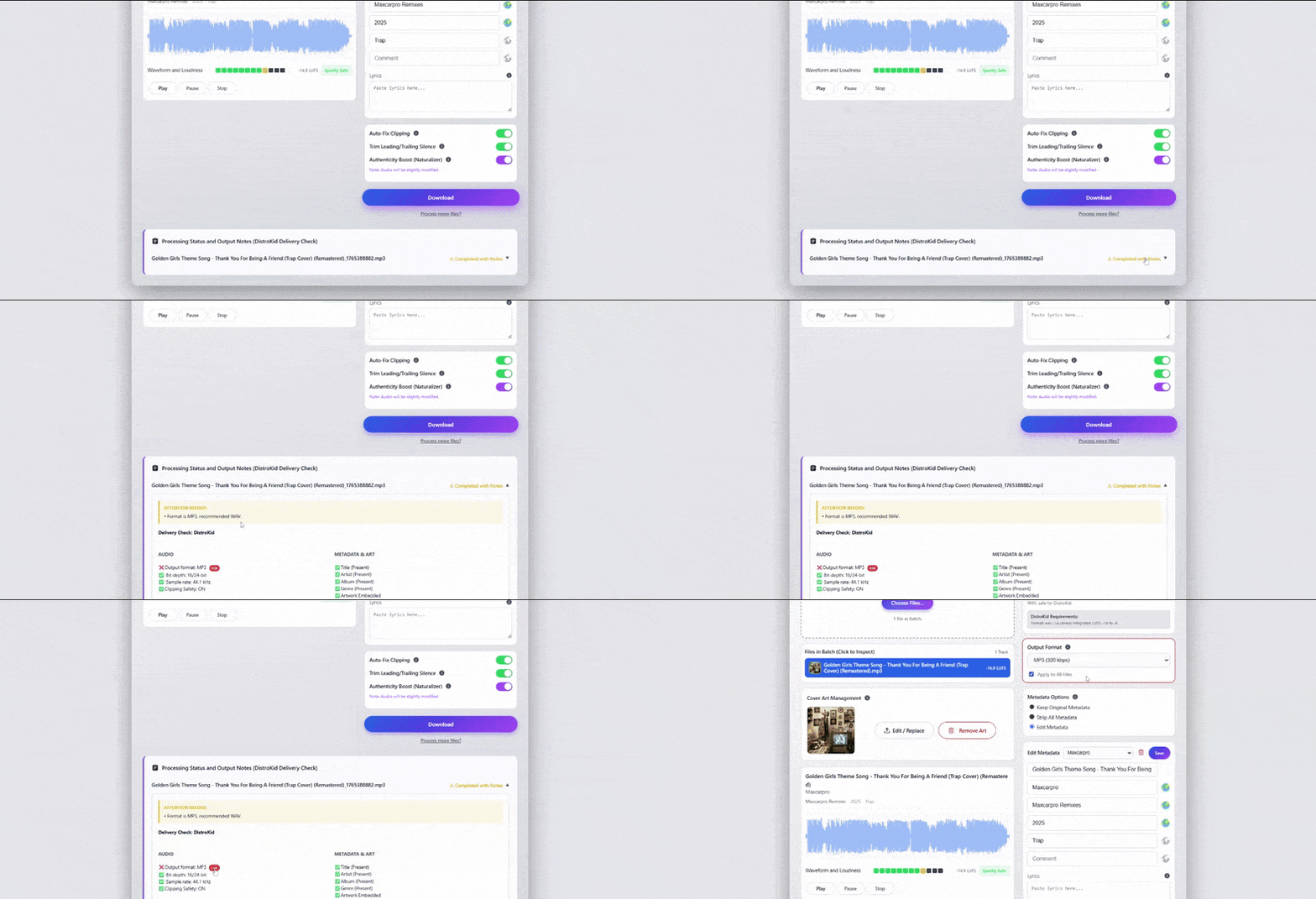
Using the "Fix" Buttons: If you see an error (like "Missing Artist Name" or "Peak Clipping"), a small "Fix" button will appear next to it.
- Clicking "Fix": The app will instantly scroll to the specific setting responsible for that error and pulse red to show you exactly what needs to be changed.
- Example: If you are missing an Artist Name, clicking "Fix" will jump to the Metadata Editor and highlight the "Artist" field.
3. Usage Credits & Billing
Understanding your monthly limits.
How do Processing Credits work? Every time you process a song (mastering check, format conversion, or loudness normalization), it uses 1 Credit.
- Starter (Free): 10 Credits / Month
- Artist ($9/mo): 50 Credits / Month
- Label ($24/mo): 500 Credits / Month
When do my credits reset? Unlike other services that reset on the 1st of the month, DistroPrep resets your credits on your personal billing date.
- Example: If you subscribed on January 14th, your credits will refresh on the 14th of every month.
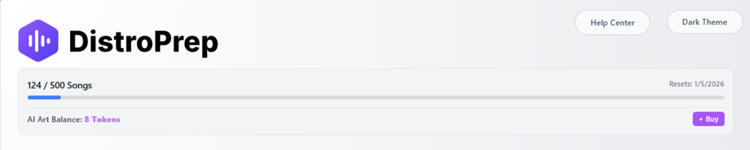
- You can check your exact renewal date in the Usage Bar at the top of the app or on your My Account page.
4. AI Cover Art Studio
Create unique, royalty-free album artwork in minutes.
What is it? Available to Paid subscribers, our AI Studio generates high-quality, abstract, or photorealistic artwork tailored for music releases. It creates 3000x3000px images (Industry Standard) automatically.
How much does it cost? The AI Studio operates on a Token System (Sold in packs of 10 for $10).
- 1 Token = Up to 16 Mockups + 1 Final High-Res Master.
Step-by-Step Guide:
- Enter a Prompt: Describe your vision (e.g., "A lonely astronaut sitting on a neon park bench, cyberpunk style, cinematic lighting").
- Generate: The system will create 4 unique mockups instantly.
- Re-Roll (Free): Don't like them? You can click "Generate Again" up to 3 times on the same token to see new options.
- Finalize: Click on your favorite image. We will upscale it to 3000x3000px and download it to your device.
[Insert Image: Screenshot of the AI Studio interface showing 4 generated square images and the "Upscale & Download" button active on one selected image.]
5. Advanced Audio Tools
Fine-tune your audio processing.
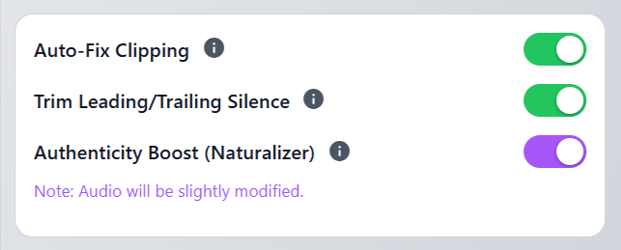
- Auto-Fix Clipping: Streaming services reject files that hit 0.0dB. If checked, we automatically lower your volume just enough (e.g., -0.1dB) to create safety headroom without changing your mix balance.
- Trim Silence: Automatically detects and removes dead air (silence below -50dB) from the very start and end of your track, ensuring your song starts instantly.
- Authenticity Boost (Naturalizer): Injects a specific, inaudible noise floor (19kHz) and applies a micro-sample rate shift. This creates a unique "sonic fingerprint" that helps distinguish your master from raw AI-generated outputs.
6. Video & Social Assets
Turn your audio into content for TikTok, Reels, and YouTube.
15s Social Story Clip: Generates a vertical (9:16) video loop optimized for Instagram Stories and TikTok. It uses your cover art as the background and overlays a reactive waveform visualizer.
YouTube Release Package: A power tool for YouTubers. Generates a ZIP file containing:
- Full Video (16:9): Your entire song with a professional visualizer.
- Thumbnail: A 1920x1080 optimized version of your cover art.
- Metadata Text File (
youtube_info.txt): Contains pre-written, SEO-optimized Title, Description, and Tags for your upload.
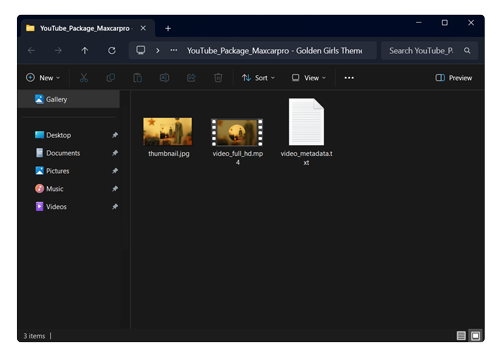
This package is designed to drastically reduce the time you spend on the YouTube upload screen. Inside, we generate ready-to-use assets based on your video content, including optimized SEO titles, targeted keywords, descriptions, and metadata tags.
⚠️ A Note on Processing Time: Generating high-quality SEO data requires significant backend analysis. If this job seems to be taking a long time or appears "stuck," please be patient. It is likely not frozen; it is actively processing in the background.
7. Power Tools (Right-Click Menu)
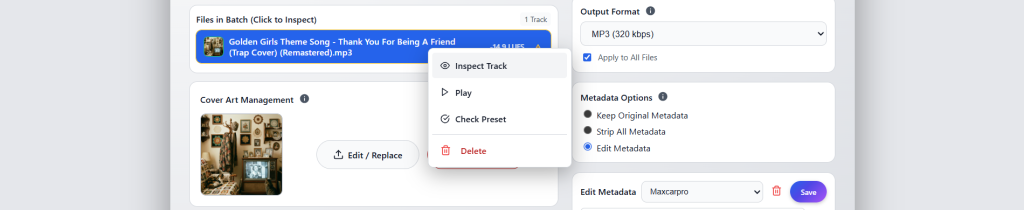
In the track list, you can Right-Click on any file to open the Context Menu:
- Inspect Track: Opens a detailed modal showing technical stats (Bitrate, Sample Rate, Encoder Name) and all embedded ID3 tags.
- Play: Instantly previews that specific track.
- Check Preset: Runs a compliance check specifically against your currently selected Preset.
- Delete: Removes the track from the current batch.
8. Troubleshooting & FAQ
My video generation is stuck on “Processing.” Is it broken?
Likely not. Video rendering is resource-intensive and operates on a queue system. If many users are creating videos at once, you may be placed in line. Please allow up to 10 minutes for your video to render before refreshing.
My video generation says "Server Error" or is stuck.
Video rendering is resource-intensive. If many users are creating videos at once, you may be placed in a queue. Please wait 2 minutes and try again.
Why does my Cover Art get rejected?
Streaming platforms are strict. Your image must be a perfect square (1:1 aspect ratio). DistroPrep will warn you if your image is even slightly off (e.g., 3000x2999). This is because, being off by a pixel can cause your tracks to get rejected down the line. Use the "Edit/Replace" button to upload a corrected image.
Can I edit metadata for 50 files at once?
Yes! Use the Global Mode. Click the small "Earth/Globe" icon next to any field (like Artist Name). This will lock that value and apply it to every file in your current batch.
Can I upgrade my plan mid-month?
Yes. Upgrading instantly resets your credit limit to the higher tier.
Can I get a refund?
Because our server costs are incurred immediately when you process files or generate videos, we generally do not offer refunds on processed content. However, if you experienced a technical error, please contact us.
Does the “Authenticity Boost” make my track sound different?
That is the goal. But on a practically inaudible (to the human ear) level. This feature injects a specific noise floor and micro-pitch variances to differentiate your master from raw AI outputs. It is designed to be subtle but technically significant.
Are my unreleased files safe?
Yes. We use 256-bit SSL encryption. More importantly, our server automatically deletes your uploaded files and processed results after a short period (1-2 hours). We do not archive your music.
Can I cancel my subscription at any time?
Yes, you can cancel your subscription at any time without any penalties. Because there are no refunds, your subscription level privileges will remain active until the end of your billing cycle.
I clicked the "Fix" button in the Discovery Check... How come it didn't work?
That's because the "Fix" button doesn't do it for you automatically. It simply scrolls to the section that needs to be fixed and highlights it in red so you can easily see what is needing to be addressed. You still need to actually make the change yourself and reprocess the file.
Still need help?
If you have a billing issue, find a technical bug, or have a feature request, please let us know below.